About the Spreadsheet Editor | |||||||
|
| ||||||
Purpose
The Spreadsheet Editor is an alternative to 2D and 3D display within the VPM Functional and Logical Editor.
The spreadsheet view allows you to quickly and easily manage a function/logical component and its content.
In a spreadsheet view, you can:
- Browse the properties: name, type, path...
- Edit the properties
- Insert a new sub-function or sub-component
- Edit Implement links
- Use any command available in the VPM Functional and Logical Editor.

Components and Properties
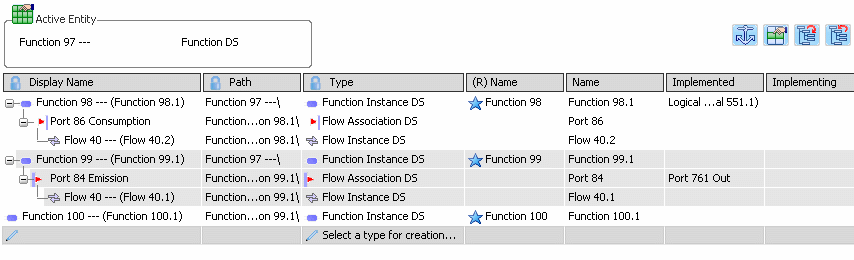
The spreadsheet displays the content of the active object in a table.
- Sub-components
- All the sub-components of the active object are listed in rows.
The spreadsheet table always ends with an empty row. This allows you to create easily a new sub-component in the active object.
- Properties
The properties of the sub-components are listed in columns.
In addition to the mandatory and identifying properties, the properties common to all sub-components are listed in the spreadsheet.
Except for Display name, Path and Type, the properties can be edited.
Description
All the commands that are available in the VPM Functional and Logical Editor are also available in the Spreadsheet Editor. Furthermore, more commands are provided to customize the spreadsheet.
Title Area

This area identifies the active object which content is displayed in the spreadsheet view.
Toolbar

- Free Balloon

- By default, Free Balloon is activated and the row insertion commands are displayed from the title area.
When this option is not de-activated, these options are displayed above a selected cell.
Refer to Creating and Modifying an Object.
- Display/hide additional properties

- Select this option to display more information about one or more objects in the Additional Properties dialog box.
Refer to Editing Properties.
- Expand All Rows
 and Collapse All Rows
- Select these options to display or not the sub-levels of the active object.
Refer to Working with the Spreadsheet Editor
- Export To File...

- Select this command to export a spreadsheet table into a .xls or .csv file.
Refer to Exporting a Spreadsheet.
