About Applying Insulation | ||||||
|
| |||||
Insulation Specification
The insulation specification can be associated to an Insulation Part Definition Table. It can be defined for a piping line logical object.
While applying the insulation, the insulation specification is retrieved from the piping line logical object.
You can check the insulation specification for a piping line logical object using the Edit > Properties command.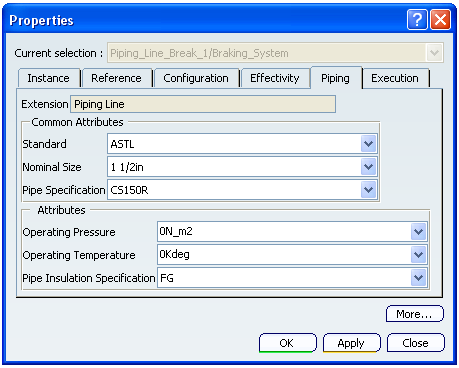

Insulation Modes
Insulation can be added/ modified in the following three different modes:
Non Spec
The Insulation Part Definition Table (for which the insulation specification is not defined) is used for selecting the insulation.
In Spec
The Insulation Part Definition Table of the base pipe insulation specification is used for selecting the insulation.
Out of Spec
A list of insulation specification defined in Project Resource Management appears in the dialog box. You can select the desired one from the list. The Insulation Part Definition Table of the insulation specification selected is used for selecting the insulation.
Note: The data in Insulation Part Definition Table is filtered by the nominal size of the base pipe.
| Important: In Spec and Out of Spec options are available if you have a Generative Piping and Tubing license. |
Insulation Object
The insulation object is added below the base object in the specification tree.
You can check the insulation properties using the Edit > Properties command.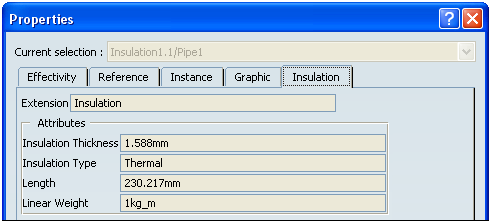
Note:
You can also check the route properties using the Insulation Data  command. To check the route properties, click Insulation Data that appears on the right side of the graphic area.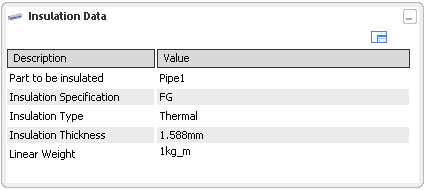
Analyze Insulation Object
You can check the insulation properties using the Analyze Item command.
To check the insulation properties, select Modify > Analyze > Analyze Item and select the insulation object in the specification tree.
The Analyze Item Data dialog box appears displaying insulation properties.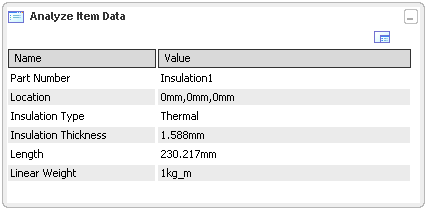
Insulation Integration
If you select the insulation part, the base part is selected for further modifications like placing part, modifying pipe etc., in the piping network.