Routing a Branch from and to a Pipe | |||||
|
| ||||
Create a Branch from a Pipe
You can create a branch from a pipe.
Click Rigid Route
 in the Compass Toolbar.
The 3D Part / Product DS appears.
Click Select
 >
Branch
>
Branch
 in the balloon.
Click the pipe at the location where you want to branch the other pipe.
The branch is created.
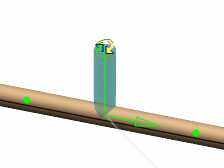
Click Commit
 to validate the position.
 The Table Browser dialog box opens to let you choose the pipe reference and the turn rule you want to apply to the branch.

Create a Branch to a Pipe
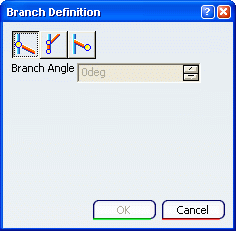
You can create a branch to the pipe by using the Curve Branch option in the Branch Definition dialog box.
Click Rigid Route
in the Compass ToolbarThe 3D Part / Product DS appears.
Click Select
>
Port
 in the balloon.
Click Select
>
Branch
in the balloon.The Branch Definition dialog box opens.