Placing Components | ||||||
|
| |||||
Place Components with an Axis System
You can place components on a flexible board by selecting an axis system.
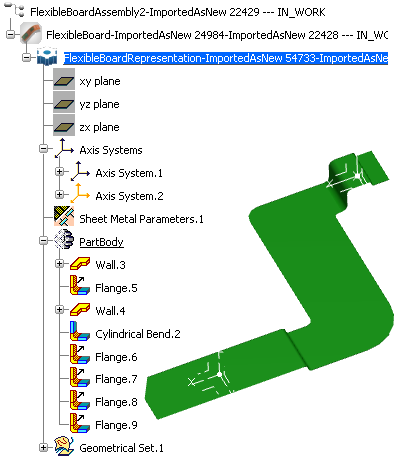
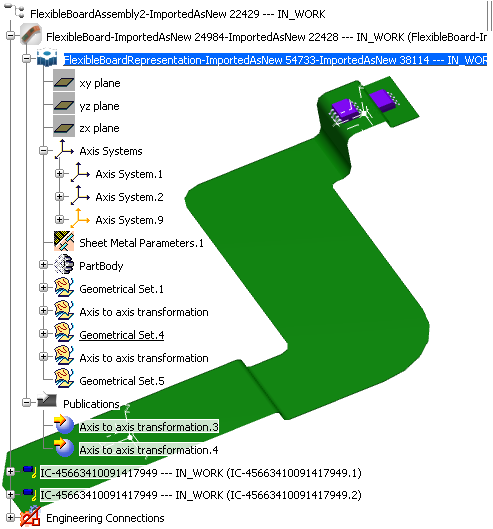
Create an Axis System on the flexible board by clicking
 .
.
The axis system will be used as the origin of the component's representation.
Click Place Component
 and select the axis system (or a sketch).
The Component Placement dialog box appears. The Position of the component is automatically filled with the axis name in this window:
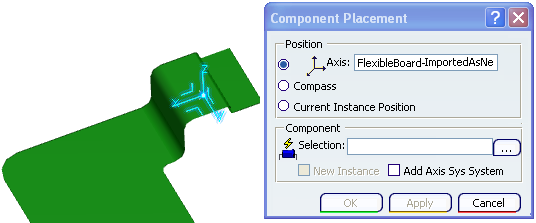
Note: If you have not created an axis system, you must check the Add Axis System option and the axis system will be automatically created and published at the origin of the component.
The axis system or sketch must be compliant with the following rules:
- The center point must be on a plane of the top or bottom board or on the surface of the top or bottom board.
- The axis system must be direct.
- The plane defined by X axis and Y axis must be on the top or bottom face.
- The Z axis must be normal to the top or bottom face.
- The Z direction should be opposite to the material direction (extrusion).
- The axis system must not be placed on a hole or cutout.
Warning: If the selection of the axis system is not compliant with the rules described above, the selection will not be forbidden but a message will be displayed: Axis System is not compatible for placing component.
If there is an ambiguity to find the face on which the component should be placed, the user must select the face manually.Click Browse
 to search for a component in database.
The Choose Component window opens.
Select a component in database or in session and click OK.
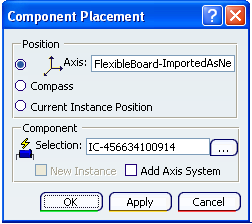
You can visualize the name of the component in the Component Placement window:
Click OK.
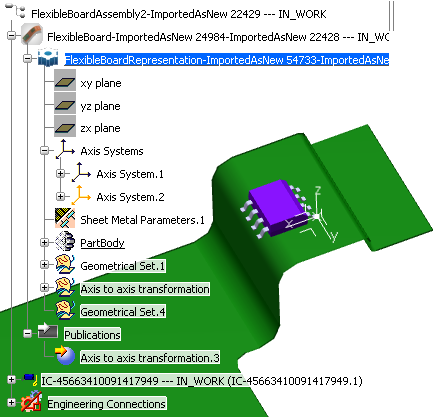
You obtain:
Click Unfold
 .
.
The added component keeps its position during the Fold / Unfold changing view:
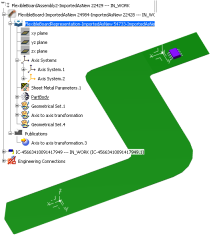
Select the component already placed on the board:
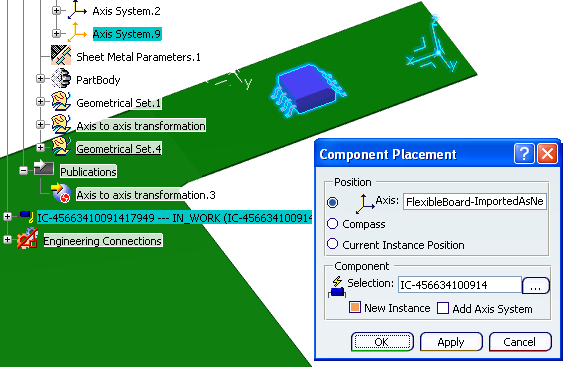
Warning: If the component is in Visu Mode, this mask  is displayed on the component icon in the specification tree and the following message appears:
The selected product is loaded in visu mode. Click it once if you wish to switch it into edit mode.
If the component instance is already placed or constrained by an engineering connection, an error message is displayed and the user will have to destroy manually the engineering connection and relaunch the command.
Click OK.
An instance of the first placed component is added on the flexible board:
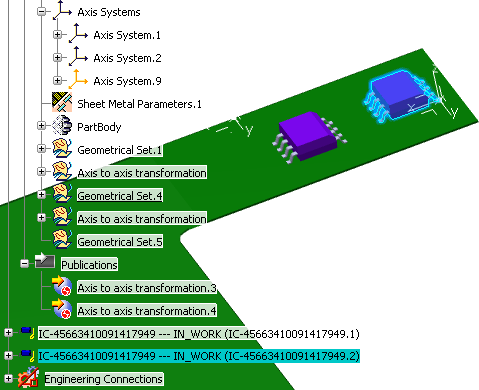
The Properties of placed components are exactly the same as the properties of Circuit Board Design components.Click Fold
.
The added component keeps its position during the Fold / Unfold changing view:

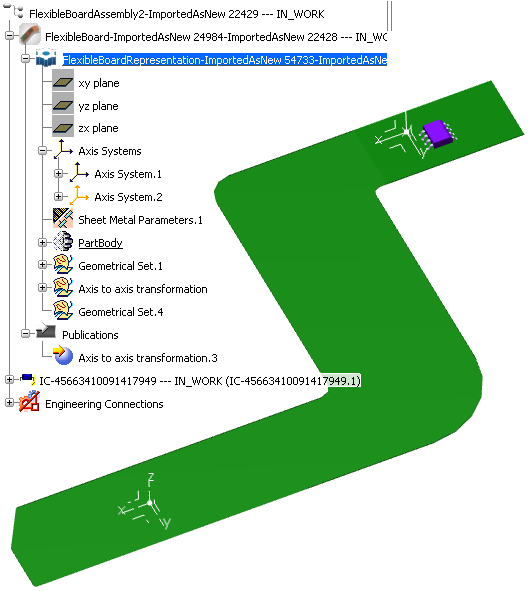

Place Components with the Compass
You can place components on a flexible board by selecting the Compass.
Click Place Component
.
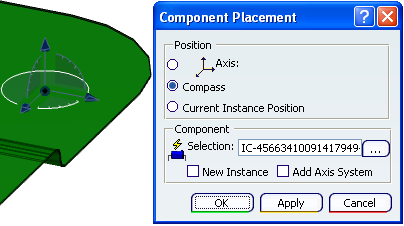
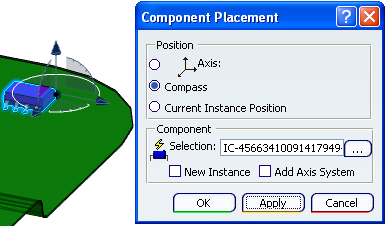
The Component Placement dialog box appears.
Check the Compass option and select a component by clicking Browse
.
Click Apply.
The component automatically takes the same position as the compass.
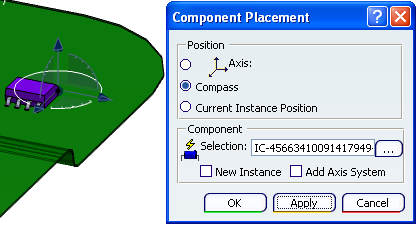
To move the component, click again Place Component
. The Component Placement window opens.
Select the Compass option and move the Compass.
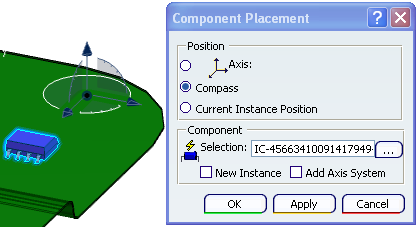
Click Apply. The component automatically moves to the Compass position.
Place Components with Current Instance Position
You can place components on a flexible board by taking into account the current position of the component.
Click Place Component
.
The Component Placement dialog box appears.
Check the Current Instance Position option and select a component by clicking Browse
.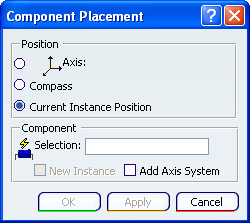
Note: This option will be available only if the component is already in the board assembly. The command allows also moving an existing component already placed: the user selects a component in the 3D before or after the command launching. If the New instance option is not checked, the component is moved.