Modifying a Logic System | ||||||
|
| |||||
Delete a leaf resource logic
You can delete a sub-resource logic or remove the resource from the system. In this case, the block instance of the removed logic has to be deleted from the organizational logic resource.
Right-click a sub-resource in the resource tree and select Delete.
The Simulation Logic of the sub-resource is deleted.
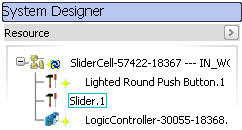
The slider.1 yellow star disappears. The icon
 shows that you have to update the system.
Double-click the organizational resource.
The immersive editor appears.
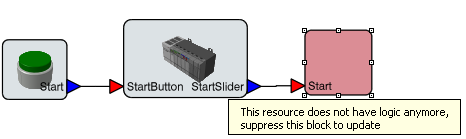
Right-click the red block and select Delete.

The instance and its links are removed.

Add a Sub-Resource
You can add a new sub-resource logic or insert a new sub-resource in the system.
Insert a new resource having a simulation logic. In our example, a new instance of the slider is inserted.
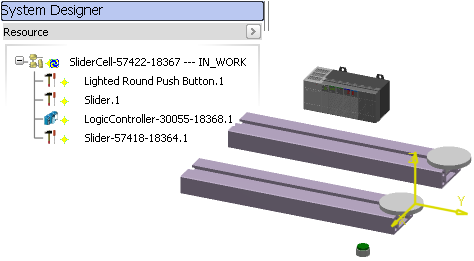
The icon
shows that you have to update the system.Double-click the organizational resource.
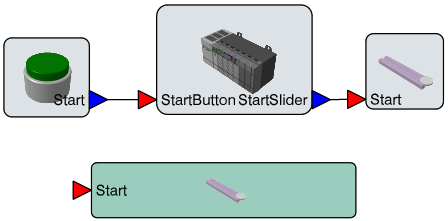
The new instance is highlighted in light green to show you that a new instance has been added.
You can move or resize the instance to remove the highlight.
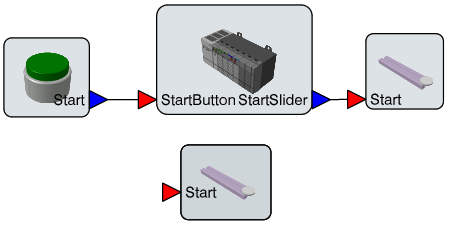
You can now map the new instance to the other elements of the system.
Update a Sub-Resource
You can change the signature of a sub-resource logic, that is, adding or removing a port. So, you have to update the instance of the sub-resource logic in the system.
Edit the simulation logic of a sub-resource. In our example, an output port is added to the Slider simulation Logic.
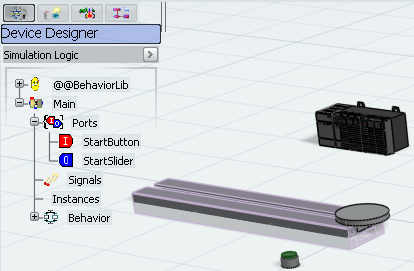
Exit Live Simulation.
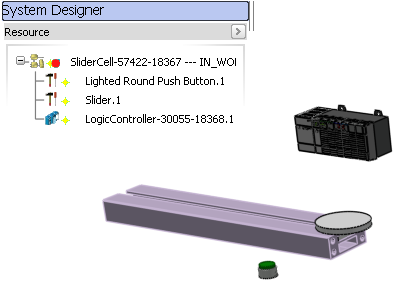
The red icon
 associated to the organizational resource shows you that the simulation logic is in error.
Double-click the organizational resource.
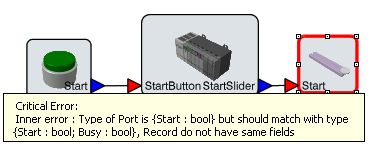
Right-click the instance in error and select
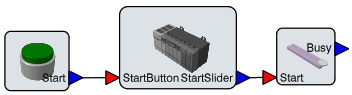
The instance is updated.