Creating a User Connection | |||||
|
| ||||
Click User Connection
 in the Connection toolbar.
The Connection dialog box appears.
Right-click the row C1 and select Set Intersecting element.
The
 mark appears next to C1 in the Elements area indicating the intersecting element. Also, a point is created at the intersection of the reference object and the selected element in the 3D graphic area.
The user connection is formed.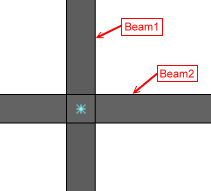
A UserConnection.1 sub-node is created under UserConnectionSet node in the specification tree.
Tip:
To modify predefined user connection:
|