Create the Parameters Driving the Pattern: NbPoints, YFactor, XFactor, ZFactor, PointsHidden, GenerateLines
You can create the parameters driving the pattern.
In the Knowledge toolbar
Click Formula  , The Formula editor opens. , The Formula editor opens.
In the New parameter of type combo box, select Integer and click New parameter of type.
In the Edit name or value of the current parameter field, double-click Integer.1 and enter NbPoints. Click OK.
The NbPoints parameter is created.
In the New parameter of type combo box, select Integer and click New parameter of type.
In the Edit name or value of the current parameter field, double-click Integer.1 and enter YFactor. Click OK. The YFactor parameter is created.
In the New parameter of type combo box, select Integer and click New parameter of type. In the Edit name or value of the current parameter field, double-click Integer.1 and enter XFactor. Click OK. The XFactor parameter is created. In the New parameter of type combo box, select Integer and click New parameter of type. In the Edit name or value of the current parameter field, double-click Integer.1 and enter ZFactor. Click OK. The ZFactor parameter is created. In the New parameter of type combo box, select Boolean, and in the Edit name or value of the current parameter field, enter PointsHidden. Click New parameter of type. In the New parameter of type combo box, select Boolean. In the Edit name or value of the current parameter field, enter GenerateLines. Click New parameter of type. Click OK to validate.

Create the Knowledge Pattern
You can create the knowledge pattern.
Click  > Knowledgeware > Templates > Knowledge Template. > Knowledgeware > Templates > Knowledge Template.
The
Knowledge Template workbench opens.
Click Create a Knowledge Pattern  . .
The Knowledge Pattern Editor opens.
First, before entering the code, it is necessary to create:
- Two Geometrical sets ; one for points and one for lines: BodyPoints and BodyLines in this example.
- It is also necessary to create Parameters as seen hereabove (NbPoints, XFactor, YFactor, ZFactor, PointsHidden, GenerateLines.
Enter the following code in the editor: /* Local variables declaration. First declare the local
variables for points and lines then for colors:
R= Red, G=Green, B=Blue */
let i (integer)
let p (Point)
let p2 (Point)
let l( line)
let R (integer)
let G (integer)
let B (integer)
i = 1
/*The pattern ensures associativity regarding number of
objects created. If it changes from one execution to
another, the pattern can delete or create new objects */
For i while i <= NbPoints
{
/* Let's create a datum point controlled by the
pattern. Its life cycle is managed thanks to the
pattern list. Depending on the number of points
determined, a loop is run to generate the desired
number of points in the Geometrical Set using the
CreateOrModifyDatum method */
set p = CreateOrModifyDatum("Point", BodyPoints ,
`Relations\Knowledge Pattern.1\Points` , i)
/* The datum point is "valuated" by a point
constructor */
p = point(PartBody\Point.2\X + cos(i*XFactor) *
10mm, PartBody\Point.2\Y + cos(i*YFactor) * 10mm,
PartBody\Point.2\Z + cos(i*ZFactor) * 10mm)
/* Its properties can be modified */
p.Name = "Point." + ToString(i)
/* the system checks if the points are hidden or
not. If not, a color is applied */
if PointsHidden == True
p.Show = False
else
{
p.Show = True
R = mod(i , 255)
G = mod(i * 2, 255)
B = 255 - mod(i, 255)
p.Color = ToString(R) + "," + ToString(G)
+ "," + ToString(B)
}
*/ Incrementing i is not mandatory here : +1
increment is the default increment. It can be more,
or it can be negative... but beware of infinite
loops */
i = i +1
}
/* The GenerateLines parameter controls the creation - or
deletion if they already exist - of lines between points */
if GenerateLines == True
{
i = 1
For i while i <= `Relations\Knowledge Pattern.1\
Points`->Size() -
{
/* Let's create a datum line controlled by the
pattern. Its life cycle is managed thanks
to the pattern list. The lines are generated
in the Geometrical Set using
the CreateOrModifyDatum method */
set l = CreateOrModifyDatum("Line", BodyLines ,
`Relations\Knowledge Pattern.1\Lines` , i)
p = `Relations\Knowledge Pattern.1\Points`
.GetItem(i)
p2 = `Relations\Knowledge Pattern.1\Points`
.GetItem(i + 1)
/* The datum line is "valuated" by a Line
constructor */
l = line(p, p2)
/* Its properties can be modified */
l.Name = "Line." + ToString(i)
R = mod(i , 255)
G = mod(i * 2, 255)
B = 255 - mod(i, 255)
/* a color is applied */
l.Color = ToString(R) + "," + ToString(G)
+ "," + ToString(B)
i = i + 1
}
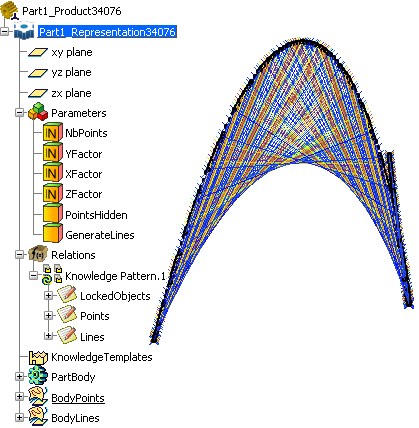
}Click Add. List.1 = 0 elements is displayed in the Knowledge Pattern Lists field. Click it and replace it with Points in the Name field. Click Add. List.2 = 0 elements is displayed in the Knowledge Pattern Lists field. Click it and replace it with Lines in the Name field. In the Mode combo box, select Automatic execution (before root update). Click OK when done. In the specification tree, double-click the YFactor parameter and enter 1. Click OK. Double-click the XFactor parameter and enter 2. Click OK. Double-click the ZFactor parameter and enter 3. Click OK. Double-click the NbPoints parameter. Use the spin box to indicate the number of instances you want to instantiate (50 in this scenario). Click Execute now. 50 datum objects are created. Double-click twice the parameter in the specification tree. The Edit parameter dialog box displays. Use the spin box to set the number of points to 300 and click OK. 300 points are created.
|