Inserting Libraries | |||
| |||
Open a logic representation. See a typical example below.
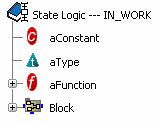
To insert a library, do one of the following:
- Right-click an element of the logic and select in its contextual menu.
-
Select an element of the logic and click New Library
 in the Module Management toolbar.
The Position dialog box is displayed.
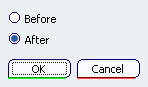
Select Before and click OK.
The Library Definition dialog box appears.
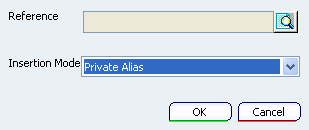
- Reference contains the library name. By default, the name of the last library used is pre-selected.
- Insertion Mode allows you to define the visibility and the accessibility of the library elements in the current representation.
Click Search a Library
 .
The dialog box Object Selection appears.
.
The dialog box Object Selection appears.The Object Selection dialog box appears.
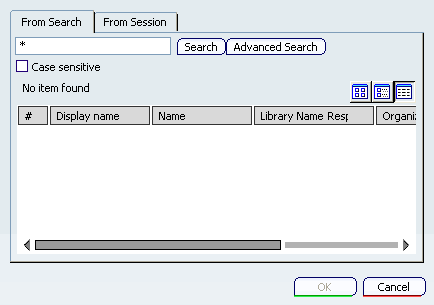
- From Search allows you to find the library from its name.
- From Session allows you to retrieve all the libraries already loaded in session.
Only Behavior Library References with the discipline Behavior_Discrete are searched.
Enter a filter expression and click Search.
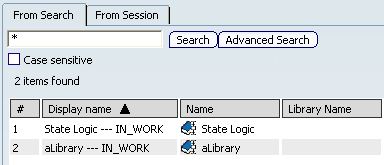
Select a library and click OK.
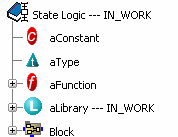
The library is added above the selected element.
Tip: To expand the library content, select in the library contextual menu. To change the library properties, do one of the following:
- Double-click the library in the specification tree.
- Select in its contextual menu.
The Library Properties dialog box appears:
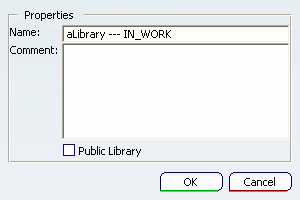
If needed, change the library name and add a comment. You can also change its visibility (see Accessing Library Components ).
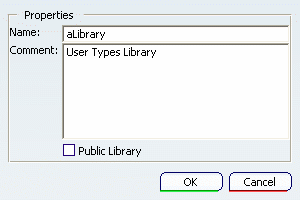
To retrieve the original name of the library, right-click on the library and select Properties .
The Properties dialog box appears:
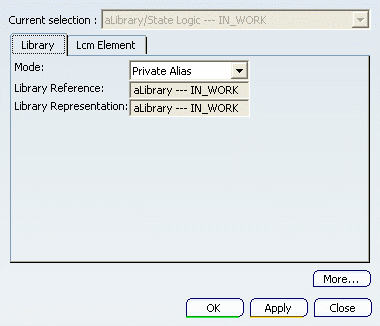
In the Library tab, the names of the library reference and representation are displayed. In this tab, you can also modify the visibility setting.