Accessing Library Components

Alias and Reference refer to the identifier that is used to access the library elements.

  • Alias means that the library element will be accessed using a full path <Library Name>@<Element name>.


  • Reference means that the library element will be accessed without mentioning the library name.

Public and Private refer to the visibility of the library outside the current module.


  • If a library is private that means that the library is not visible outside its current module.

This task shows you how to:


Before you begin:

The workbench used to edit the logic representation should be opened:


  • Device Logic Design if the logic representation is a Simulation Logic

  • Module & Block For Libraries if the logic representation is itself a library

  • State Logic Modelling if the logic representation is a State logic associated to a function or logical component ( RFLP context).

Related Topics
Inserting Libraries

Set Alias / Reference Insertion Mode

You can set the library insertion mode as Alias or Reference. This impacts the access path of the components library.

  1. Open a Simulation Logic or a State Logic Library .

  2. Add a new library (see Inserting Libraries).

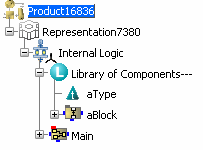
  3. In the Library Definition dialog box, set the Insertion Mode to Private Alias.
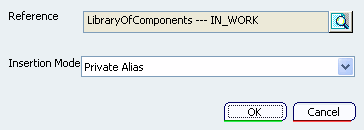


  4. Click OK.


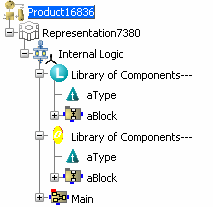
  5. Add again the same library .

  6. In the Library Definition dialog box, set the Insertion Mode to Private Reference.
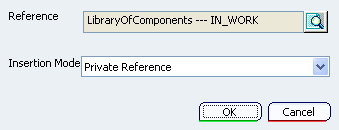


  7. Click OK.


    A library set as a private reference is identified by a yellow icon.

  8. To verify the accessibility of the library elements:
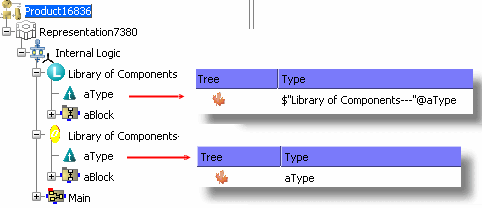


    1. Click New Type in the Module Management toolbar and select the representation of the root product.

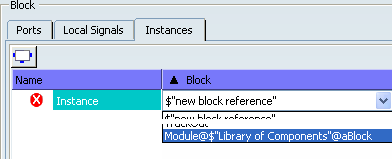
    2. Click the column and scroll down the list of available types. All the library types are available but their identifiers are different.

Set Public / Private Insertion Mode

You can set the library insertion mode as Public or Private. This impacts the visibility of the library outside the current module.

  1. Open a product that has a Simulation Logic (or a State Logic library containing a block).

  2. In the block contextual menu, select Insert > Module.

    The Position dialog box appears.

  3. Select Before and click OK.

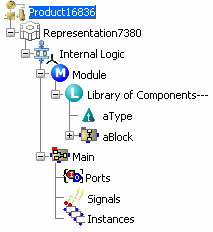
    The module is inserted before the block, that means that the module elements can be visible from the block elements.
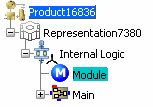


  4. Select the module and add a library . The dialog box Position is displayed.

  5. Click OK.

  6. Select an existing library (see Inserting Libraries).

  7. In the Library Definition dialog box, set the Insertion Mode to Private Alias.


  8. Click OK.


  9. Double-click the Instances node in the tree. The Block Properties dialog box appears.

  10. Select Add Block and review the list of available blocks. aBlock is not listed. An element of a private library is not visible outside its module.

  11. To change the type (Public/Private) double-click the library in the specification tree.

    The Module Properties dialog box appears.
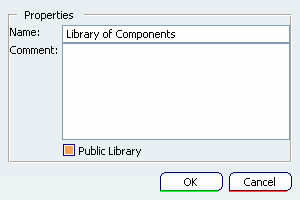
  12. Select the Public Library check box, and, if needed, change the library name.

  13. Click OK.

  14. Repeat steps 9-10. aBlock is now visible in the list of the block.