Adding Functions | |||
| |||
Add Predefined Functions
The predefined functions are available in the specification tree. They can be reused in different blocks.
If a function is not available in the current logic workspace, you can create one (see Defining Functions) or use a function available in the pervasive library.
- Expand the module Bool to access the
Boolean functions.
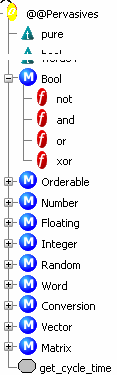
- Expand the module Bool to access the
Boolean functions.
Click the not function and select Add function
 in
the Predefined Blocks toolbar.
in
the Predefined Blocks toolbar.Click the place in the blank sheet where you want to position the function.
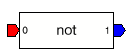
Double-click the block to open its properties.
The Function Block Properties dialog box is displayed.
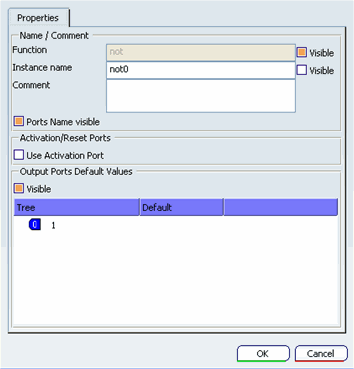
Name/Comment
-
Function: This field contains the name of the function.
-
Instance Name: You can change the name of the instance by filling this field.
-
Visible: You can choose to display the function name or its instance name in the viewer.
-
Comment: The comment of the block is displayed in a tool tip when you move the mouse over the instance.
-
Ports Name Visible: You can display the name of the ports in the viewer by checking this box.
Activation/Reset Ports
-
Use Activation Port: When the check box is selected, a boolean input is added at the top left side of the block. The function is executed only if this port is true.
Output Ports Default Value
-
Visible: You can display the default value of the output ports in the viewer by checking this box.
-
Default: You can fill a default value. Default values are emitted as long as the block has never been activated (see Activation above).
-

Add Local Functions
Local functions are directly created in the Block Editor. Their usage remains local to the block.
Select Add User Function
 in the Predefined Blocks toolbar.
Click the place in the blank sheet where you want to position the function. The User Function Block Properties dialog box is displayed.
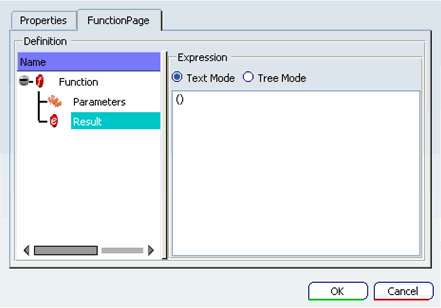
Set the input parameters:
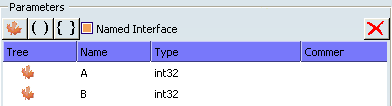
- Click twice on Add Param
 .
. - Set the inputs names A and B.
- Select the Type using the combo.
- Click twice on Add Param
Enter the function result.
- Click twice on Add Param
.
- Enter the result expression.
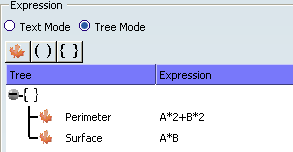
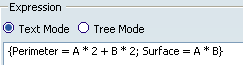
- You can switch to Text Mode to see the
result in that mode.
- Click twice on Add Param
Click the Properties tab. You can change the default instance name of the block. You can use the Visible check boxes to define whether the value of the function or the instance name will be displayed in the Block editor.
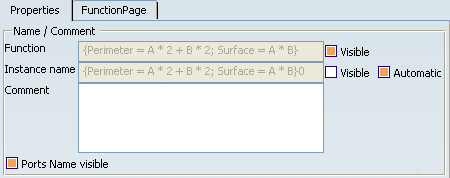
When Automatic is checked, the name of the instance is the expression of the function.
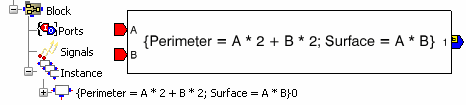
Click OK. The function block is displayed in the blank page. The instance is added to the tree.