Creating Constraints Between 2D and Generated Elements | |||||
|
| ||||
 and the
  icons are active in the
 Click the Geometrical Constraint icon
 from the Geometry Modification toolbar.
The software offers to create the most logical constraint (if you want
to apply this constraint, click in the drawing to validate).
from the Geometry Modification toolbar.
The software offers to create the most logical constraint (if you want
to apply this constraint, click in the drawing to validate).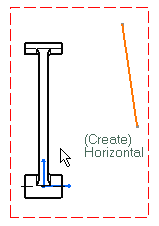
Select a generated edge from the drawing you have opened.
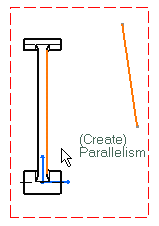
The software offers to create a parallelism constraint by default. If you want to apply this constraint, click in the drawing, otherwise.
Right-click and select Perpendicularity in the contextual menu.
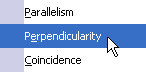
A constraint is created between the generated element and the 2D element.
| Tip: You can delete this constraint by right-clicking the created constraint and selecting Delete in the contextual menu. |
Important:
|