Visualizing Broken Constraints between 2D and Generated Elements | ||||||
|
| |||||
 is active in the
 Click Update in the Update toolbar.
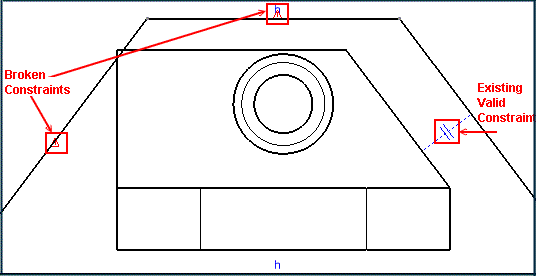
Broken constraints are represented by a red warning-like symbol
 . Valid constraints are also displayed.
Notes:
- When deleting a use-edge, the constraint created with it is broken.
- When multi-selecting the geometry and its constraints for copy-paste operations, broken constraints are kept and pasted too. If the entire geometry is not selected, constraints are not copied.
- The color used to visualize broken constraints is the color defined for inconsistent elements in tab, Colors area, Visualization of diagnostic.
- The size used as a reference to display broken constraints is the same as the reference size defined for constraints (2mm by default) in tab, Constraints Display area, Reference size.
You have now learned how to visualize broken constraints.