Creating an Equipment Subtype Filter in Project Resource Management | ||||
|
| |||
Click
 > Infrastructure > Project Resource
Management.
> Infrastructure > Project Resource
Management.The Project Resource Management Editor is displayed.
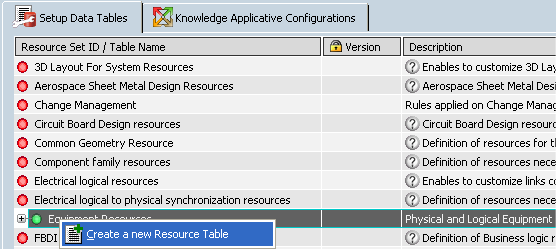
Select the Create a new Resource Table contextual command of Equipment Resources.
Click Finish.
The New / PLM Resource Set Custo dialog box is displayed and enter a name. The window related to the Resource set you chose opens:
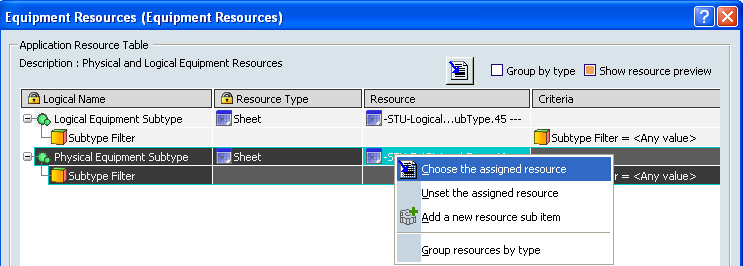
Select an excel file and click OK.
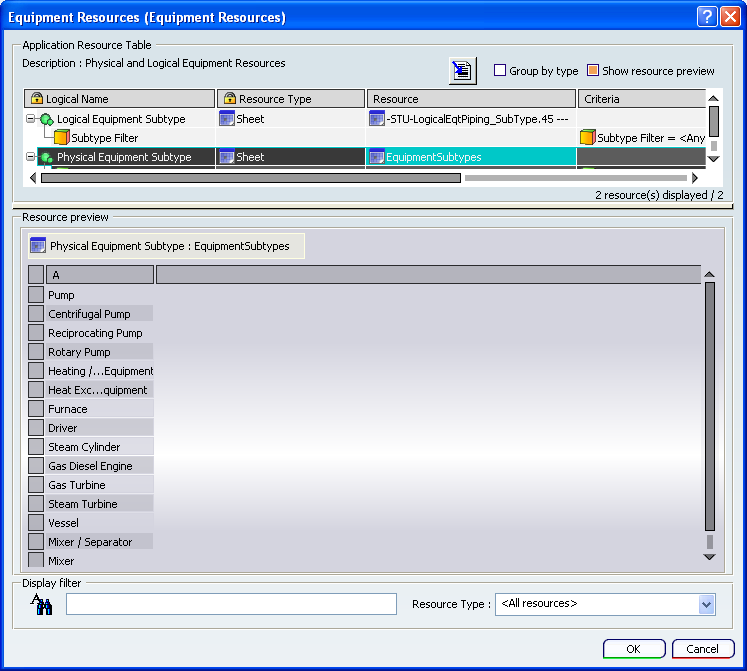
The excel file name appears in the Resource column of the Physical Equipment Subtype. And the resource preview frame displays the available strings to be used for subtype application during equipment instantiation.
Click
> Equipment > Electrical Discipline > Electrical Part Design.Create a new product and click Equipment
 .
.The Equipment Definition dialog box opens. The Subtype field now contains a drop down list of the values suitable for equipment as defined in the resource (excel file):
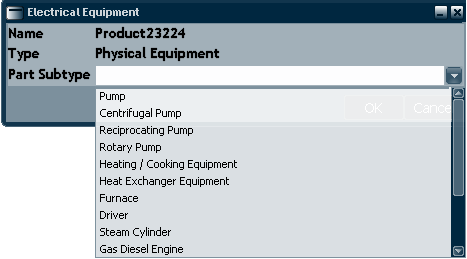
For more information about this dialog box, please refer to Defining Equipment.