Creating Retainers

A retainer is a special type of support comprising a flat base. When routed on this support, the segment keeps in contact with the base, whatever the segment diameter.

You can create retainer using Support command.


Before you begin: Create a mechanical product containing a standard 3D shape.
Related Topics
About Multi-supports
Creating Standard Supports
  1. Click Support or select Insert > Support...

  2. Select a 3D shape representation in either the specification tree or the geometry area.

    The Support Definition dialog box opens:
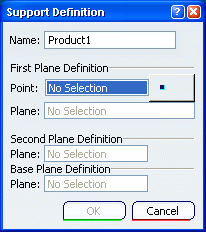
  3. Enter or change the name for the support.

  4. Select the point through the support to define the position of the segment when it will be routed through the support.

    You are prompted to select the first plane: the way in of the support.

  5. Select a first plane to define the way into the support, for example, a face.

  6. Select a second plane to define the way out of the support, for example, the opposite face.

    Important: The two planes must be parallel.

  7. Select the base plane to complete the definition of the retainer.

    Note: Only planar surface or plane can be selected as Base Plane to avoid ambiguous positioning on curved surfaces.

    This plane is published with a special name: EHISUPPORT-RefBasePlane and means that the retainer will be recognized as such in CATIA.

  8. Click OK to validate.

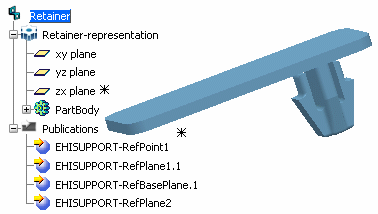
    The specification tree is updated:

    The publications are created with the specific retainer parameter EHISUPPORT-RefBasePlane.
    Tip: You can route flat cables on retainer supports. Flat cables are positioned on supports according to a default reference axis which is perpendicular to the base plane. If you want to change the flat cable's orientation, you can use the Rotate functionality to define a new angle. For more information, please refer to Electrical 3D Installation User's Guide: Working with Segments: Using the Rotate Command on Flat Cables and Electrical 3D Installation User's Guide: Creating Flat Cables: About Orientation Management.