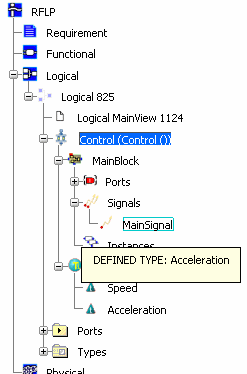
Inserting a Types Library | |||||||
|
| ||||||
Click Add Types Library
 in the Module
Management toolbar and select MainBlock in the RFLP
tree.
in the Module
Management toolbar and select MainBlock in the RFLP
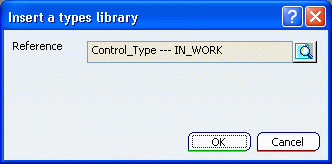
tree. The Insert a Types Library dialog box appears.
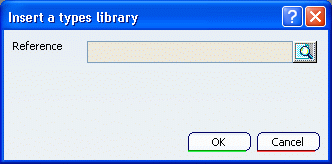
Reference contains the name of the library. By default, the name of the last library used is pre-selected.
Click Search a Library
 .
.
The dialog box Object Selection is displayed.
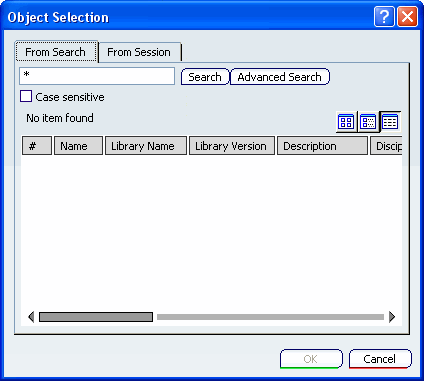
Click Search.
All the Library representations are listed.
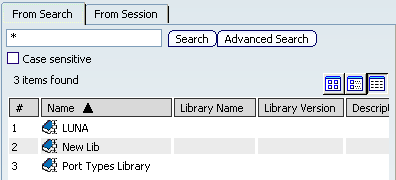
Select the desired library and click OK.
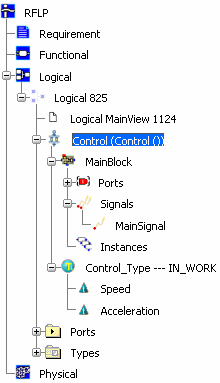
The Library is added below MainBlock in the RFLP tree.
In the drop-down list of the Type column, you can see that the user-defined types of the loaded library are available at the top of the list.
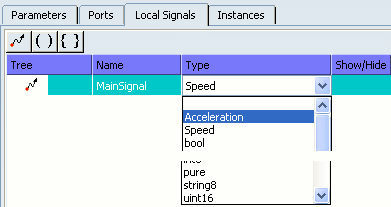
Select a type and click OK.