Arranging Editor Layout | |||||
|
| ||||
Resize Block Instances
You can resize block instances by selecting the block.
Select a block instance in the immersive editor.
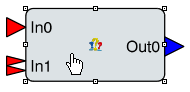
Drag and drop a mark to resize the block instance.
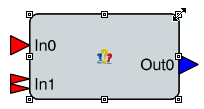

Arrange Ports
You can move the ports on the left and right sides of the block instance.
-
Drag and drop the ports to position them on the left and the right side of the block instance.
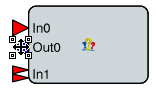
Note: Unlike the Block editor, you cannot expand a structured port.
Align Editor Elements
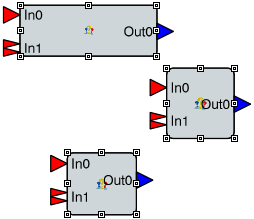
You can align and distribute equally spaced block instances and ports.
Press Ctrl and select two or more instances.
Select
 in the toolbox.
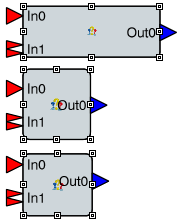
The instances are aligned to left of the leftmost instance.Tip: Click the background to un-select the block instances. You can apply the same command on ports or ports and instances.
- Select at least one port and one instance.
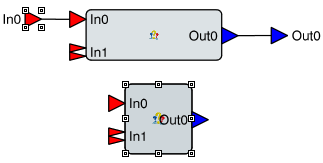
- Select Align Left in the toolbox.
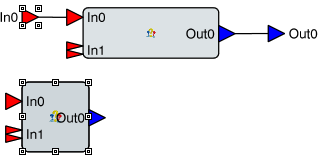
The instance is aligned to the port.
Note: You can use in the same way the commands Align Right, Align Vertical Center, Align Top, Align Bottom and Align Horizontal Center.
- Select at least one port and one instance.
Distribute Editor Elements
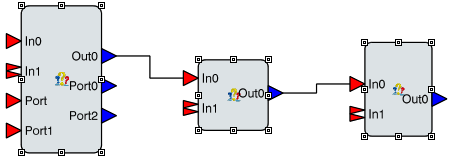
You can distribute equally spaced block instances and ports.
In the toolbox, click
 .
.The command list appears.
Select three instances or more.
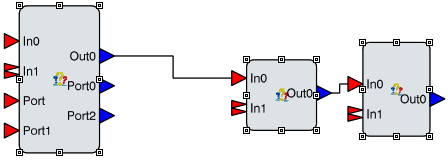
Select
 .
.
Note: You can use in the same way the commands Distribute Vertically .
Copy Width and Height
You can resize a block instance with the same width and height than the first selected block.
Select a first block instance, then a second block.
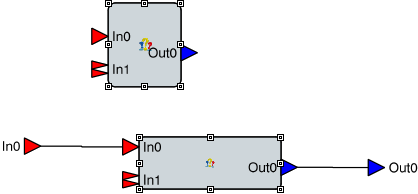
Select
 in the toolbox.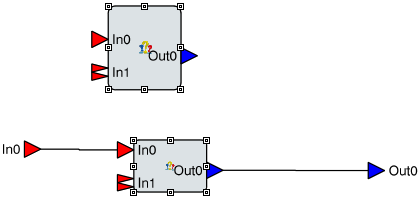
The second selected block is resized with the same width than the first selected block.Select Same Height in the toolbox.
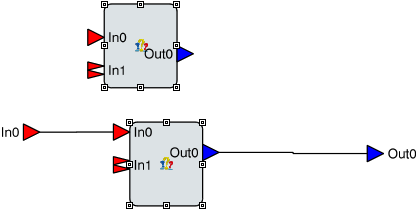
The second selected block is resized with the same height than the first selected block.