Data Compression | ||
| ||
Data Compression Over Network
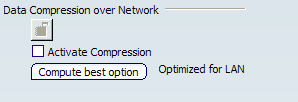
Data are sent over the network between the V6 Client and ENOVIA V6 server. If the network is experiencing poor performance, round trip time data will be impacted.
To reduce the impact on the network, data can be compressed to reduce its size prior to being transferred over the network. If the network bandwidth is experiencing poor performance, and if the power of the processors allows it, we recommend that you compress the data.
This feature also provides an optimization function that can be applied at login time. The optimization is now administered as a setting.
In the following example, the WAN between CATIA Velizy (France) and the server Pune (India) has poor latency and bandwidth, whereas the LAN between CATIA Velizy (France) and the server Velizy (France) has high performance:,
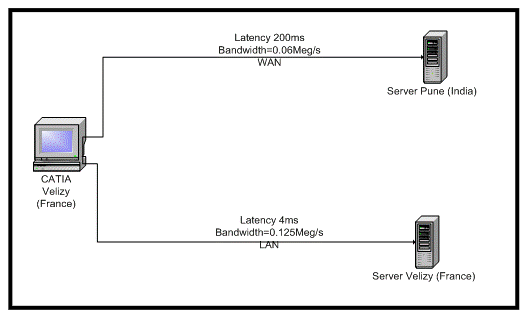
Consequently, if the data to be transferred is the same size, the elapsed data transfer time without data compression is:
- 8 ms between CATIA Velizy (France) and the server Velizy (France)
- 800 ms between CATIA Velizy (France) and the server Pune (India)
which naturally encourages you to compress the data being transferred between Veizy (France) and Pune (India).
The following diagram illustrates succinctly where the compression and uncompression components are located:
The Compute button and information will be removed from the login panel and transferred to a tab page in Tools/Options/Connections/Data Source
- Activate Compression
-
Check this button to force compression mode activation. This activates compression mode irrespective of whether you clicked the Compute best option (Optimize for LAN) button or not, because once activated, all data is compressed prior to transfer.
For the MCS server:
- this feature manages compression of client requests to the MCS server
- MCS Server response is always compressed in all cases.
For the FCS server:
- the client requests to the FCS server are never compressed (CheckIn)
- the FCS server will compress the response if the setting is activated, irrespective of the number of files (CheckOut).
- Compute best option (Optimized for LAN)
Clicking the Compute best option (Optimize for LAN) button evaluates the network's capability and decides to activate or not activate compression mode based on computation results. The computation is performed and the best compression scheme implemented by internal algorithms.
Information will be displayed whenever necessary each time you click the button, and will also be updated after the computation.
Whichever option you choose, your choice is stored in your user settings (in the CATPLMxNetwork.CATSetting file), so that data compression optimization can be applied at logon.
