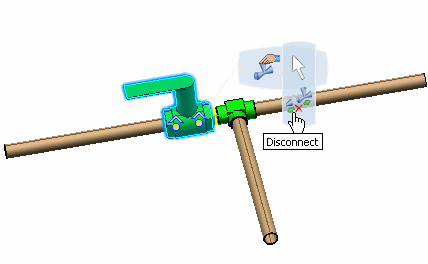
Connecting and Disconnecting Parts | |||
| |||
Connect Parts
You can connect two parts using the Connect Part commands.
Click Modify
 in the Compass Toolbar.
Select the part you want to connect.
The ports appear on the selected part. A symbol is added to the yellow point to indicate that the port is already connected, as shown below.
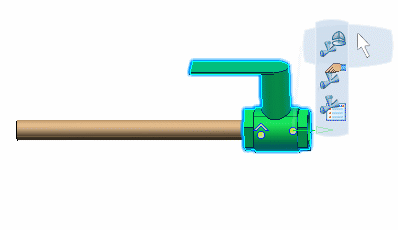
In the balloon, click Edit
 and then Connect
  .
.Select the part you want to connect to.
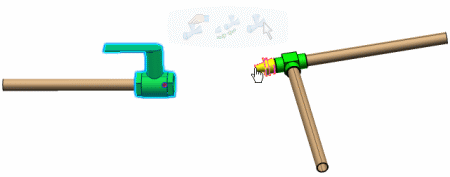
The first part moves to connect to the second part, such that the ports are aligned and clocked. The parts are connected at the selected ports. An engineering connection is created between the two parts. For more information about engineering connections, refer to Mechanical : Assembly Design User's Guide : Engineering Connections.
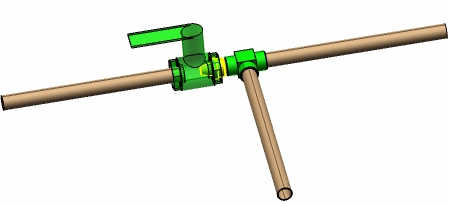
The first part moves to make the connection. If it is connected to a pipe, the pipe moves to connect to it, after you update. In the image below, the valve moves to connect to the adaptor.
However, a part already connected to another part cannot be selected as the first part. Therefore, to connect to such a part, the other part needs to be selected first.

 .
.