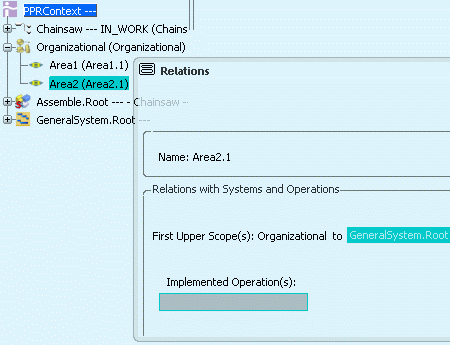
Inserting a Resource | ||||||
|
| |||||
Right-click the PPR Context node and select Organizational in the Insert Resource menu.
Alternatively, you can select the PPR Context node and click Organizational
 in the Insert Resource toolbar.
The Resource/General Resource Typing dialog appears.
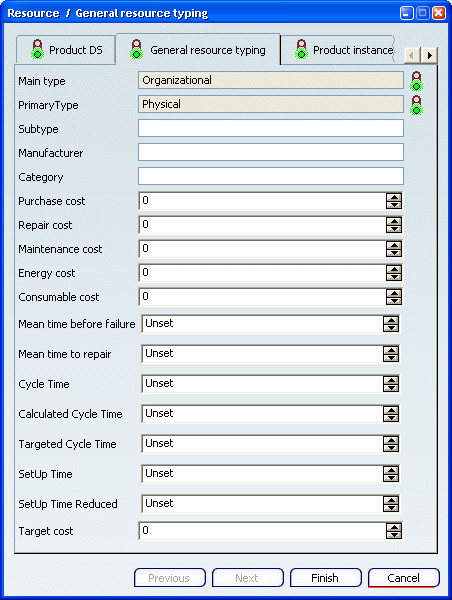
Click Finish to create the new resource/product reference at the designated place in the PPR tree.
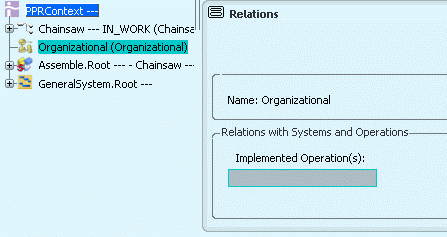
Select the root GeneralSystem node in the tree.
A Resource-System scope is created between the Organizational resource and the GeneralSystem.
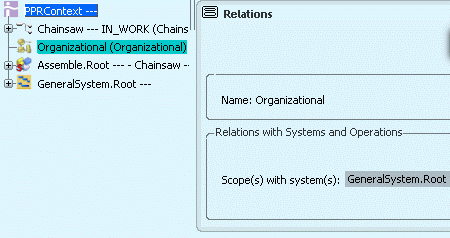
If needed, create other resources in the tree in the same way.
Note: You can create other resources under certain resources in the tree (for example, a tool device and NC machine under an organizational resource). For more information, see About Resources.