Rendering Objects Transparent | ||
| ||
If you are not already in In-place mode, then click Swap Turntable/In-place
 .
.Click the Expand All icon
 or in the menu bar, select View > Expand All.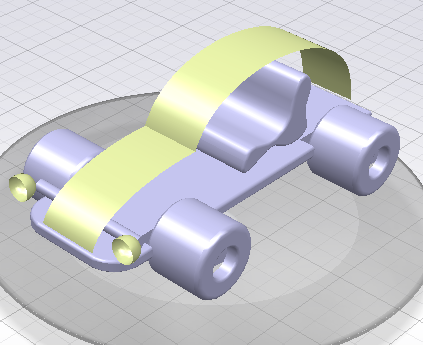
In the toolbar, double-click Ghost/No Ghost
 .
.The immersive Ghost toolbar appears. Note: By having double-clicked the icon to enter the command, you will be able to use the command multiple times; otherwise, the command is one-shot and will automatically stop after one Ghost status change.
To set the command in Ghost mode, click Apply ghost effect
 .
. In the 3D or in the Tree, click objects.
The objects becomes transparent.
Tip: You can place the mouse over an object and press F6 to render an object transparent. 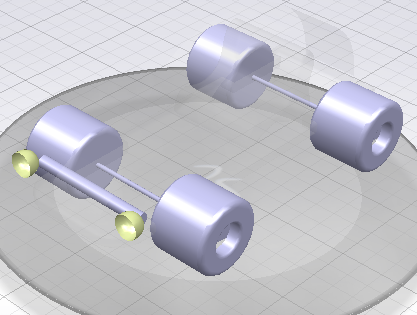
In the Tree, the transparent objects are indicated by a little ghost under the branch.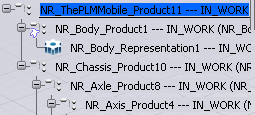
To set the command in No Ghost mode, click Remove ghost effect
 .
.Tips: - You can place the mouse over an object and press F7 to remove the ghost effect for an object.
- You can press F8 to remove the ghost effect for all objects.
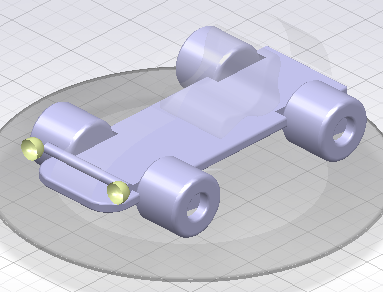
In the 3D or in the Tree, Click a transparent object.
The object becomes opaque again.
Tips:
|
Considerations
- Interactivity with navigation ability: The Ghost status is kept while navigating through the turntables. It is also kept when you collapse a node with ghosted children; if the you re-expand this node, previously ghosted children will be ghosted.
- Interactivity with PLM compass: While using the PLM compass, ghosted geometry is not taken into account for the display of PLM information, they remain ghosted. (Interoperability is planned for a future release.)
- Persistency: When the exploration of the Product is closed, the Ghost status of the Product’s nodes is erased, there is no persistency. The command Refresh and Collapse also erases the Ghost status of the nodes.
- Since the pre-highlight is displayed on edges, and since 3D Thumbnails don’t have any edges, the pre-highlight will not be displayed on 3D Thumbnails.