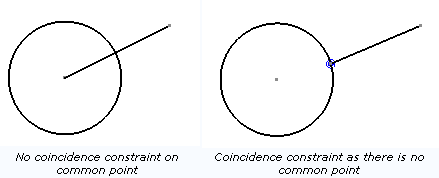
Note the following points:
- Construction elements contained in 2D geometry are displayed only
in the active view.
- In order to help ensure that 2D geometry is not altered once it
has been created, geometry edition is only allowed in the active view.
Therefore, if you want to edit or move 2D geometry, you need to activate
the view which contains the geometry. You can prevent 2D geometry from
being inopportunely moved (and distorted) in active views by unselecting
Allow direct manipulation from Tools > Options > Mechanical
> Drafting > Geometry tab.
- You can create as many 2D geometry elements of a given type as needed
by double-clicking the appropriate icon (instead of single-clicking
it).
- While creating 2D geometry, you can create detected constraints
automatically by activating the Create Detected Constraints
icon
 in the Tools toolbar. You can view the created constraints
by activating the Show Constraints
in the Tools toolbar. You can view the created constraints
by activating the Show Constraints
 icon.
icon.
|