Managing Geometry in User Surface Annotation | |||||
|
| ||||
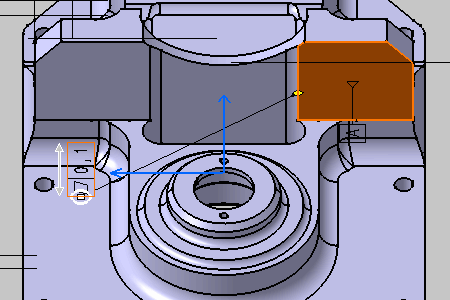
Right-click the annotation as shown below on the 3D shape and select the from the contextual menu.
The Connection Management dialog box appears.
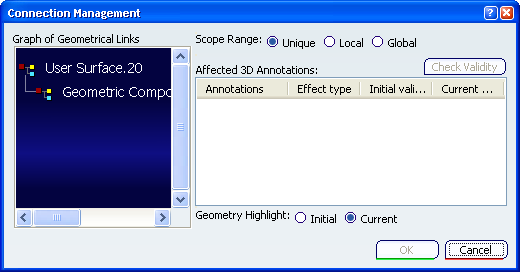
Right-click User Surface.20 in the Graph of Geometrical Links as shown below and select the Add Geometry from the contextual menu.
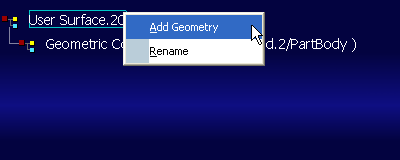
Important: It will add a new geometric component to the user surface User Surface.20 feature and prompt you to select the new geometrical element to be linked to the annotations.
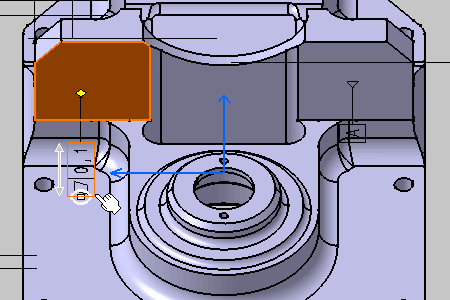
Select the surface as shown below on the part.
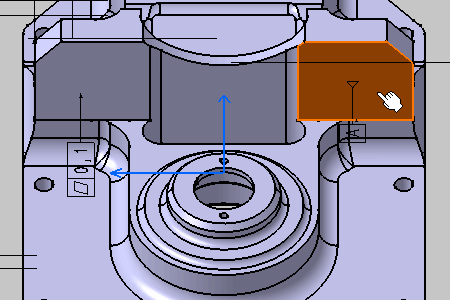
Click Check Validity to check the new geometry component validity relative to the selected annotation.
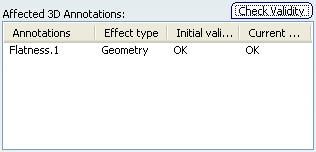
Click OK in the Connection Management dialog box.
The two geometric components are now link to the annotation.
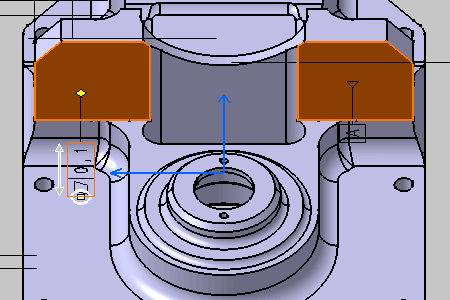
Right-click Geometric Component.13 in the Graph of Geometrical Links as shown below and select the Delete contextual menu.
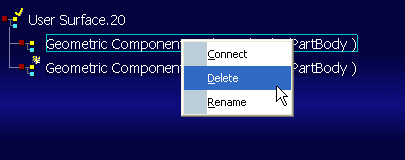
Click OK in the Connection Management dialog box.
Only one geometric component is now linked to the annotation.