About Balloons | ||
| ||
Balloon Activation
Balloons are available in many V6 workbenches, e.g. Quick Surface Reconstruction, CATIA Live Shape, or Material Editor.
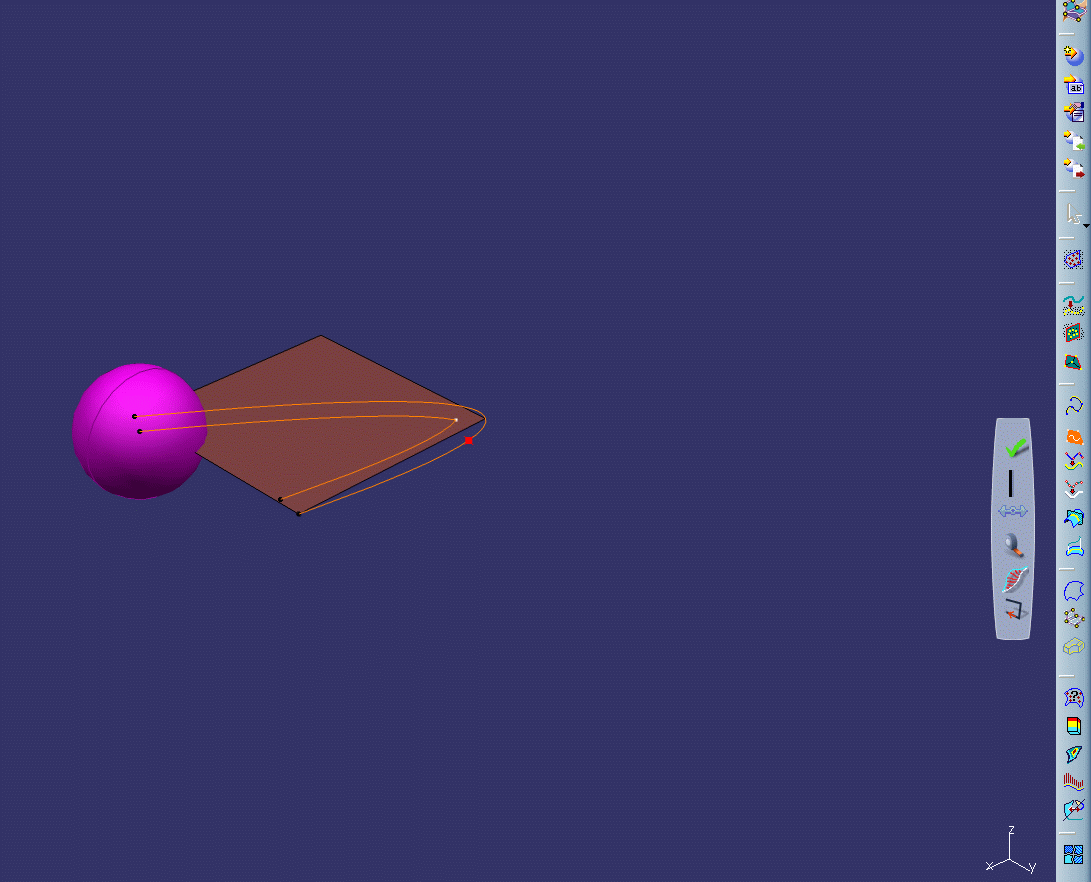
The first time the balloon appears, it is linked to the model by a 3D line and is located near the model.
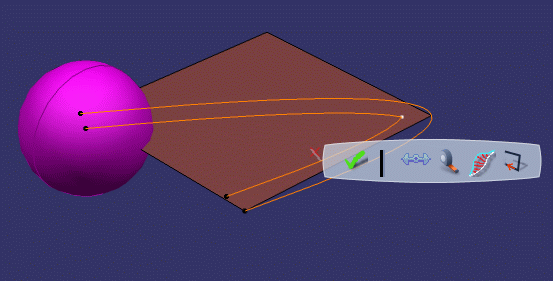
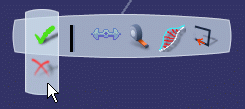
Tools are organized in categories. To change a tool, just pause over it and select a new tool or option from the vertical balloon that appears.
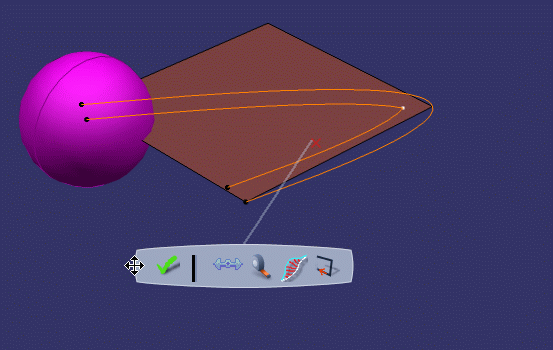
To move the balloon out of the way, select the border (left, right, top, or bottom) of the balloon and drag it to a new location. Note that the bigger grab areas are located on the left and right sides of the balloon.

Balloon Docking
Balloons can be docked to the border of the 3D viewer.
When dragging the balloon near one of the borders of the 3D viewer, a drop area appears. The width of this drop area is about 60 pixels.
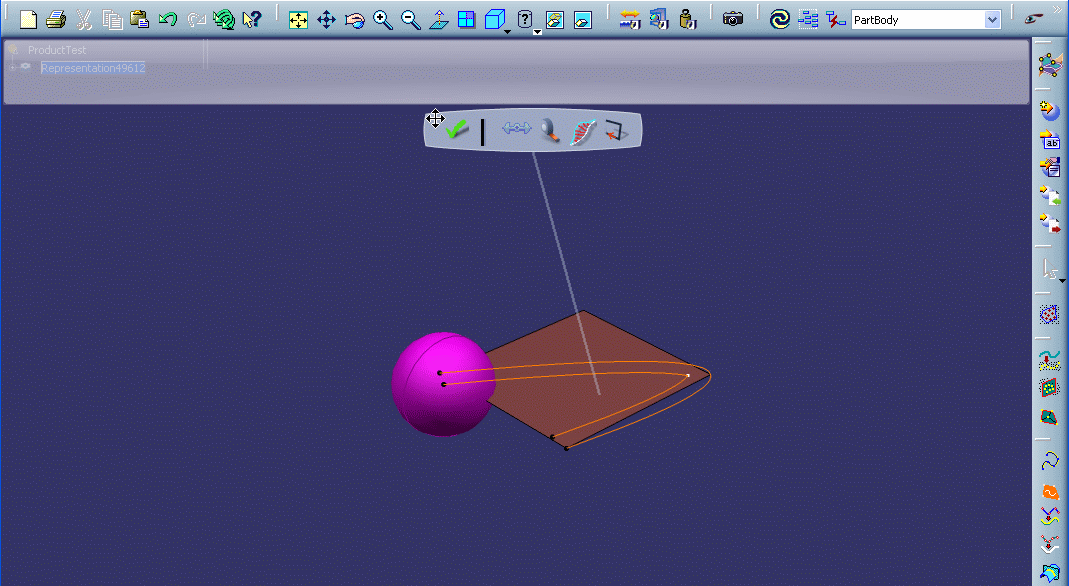
If you drop the balloon in this area, it is snapped to the border of the 3D viewer at the closest location. The line between the balloon and the geometry disappears but the balloon is still bound to the geometry and remains contextual.
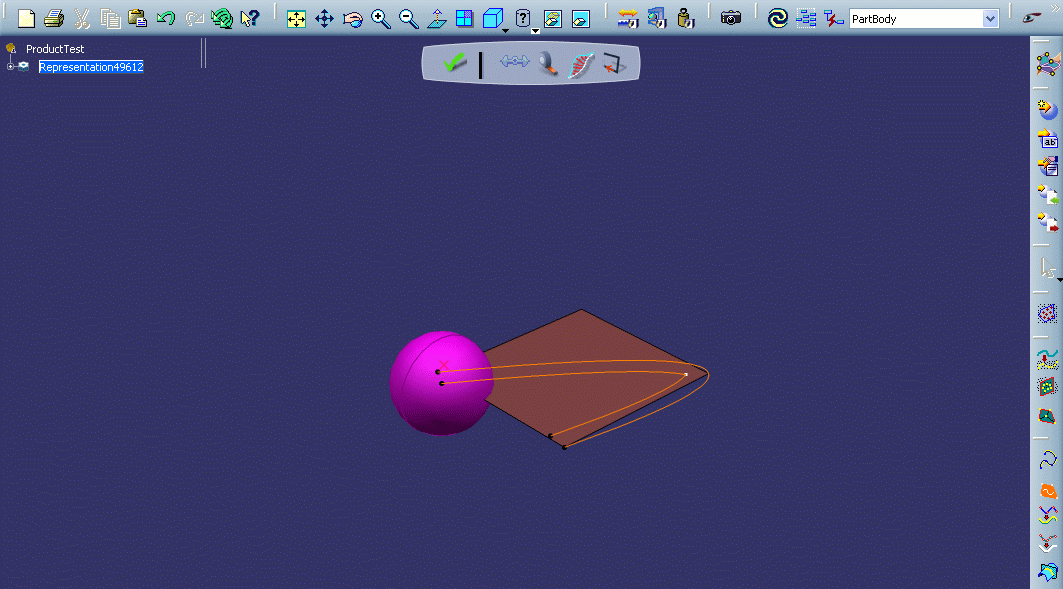
When vertical balloons are available, they are not displayed in foreground but are detached from the active command so that the two balloons do not overlap each other.
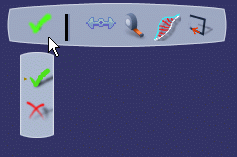
The size of the icons displayed in the balloon does not change, except when working in a multitouch environment.
To undock the balloon, drag it outside the drop area. The line between the balloon and the geometry is displayed.
| Important: The position and state (i.e. docked or not) of the balloon in the workbench is stored from one session to another. |
Note that when the balloon is dropped onto the left or right border of the 3D viewer...
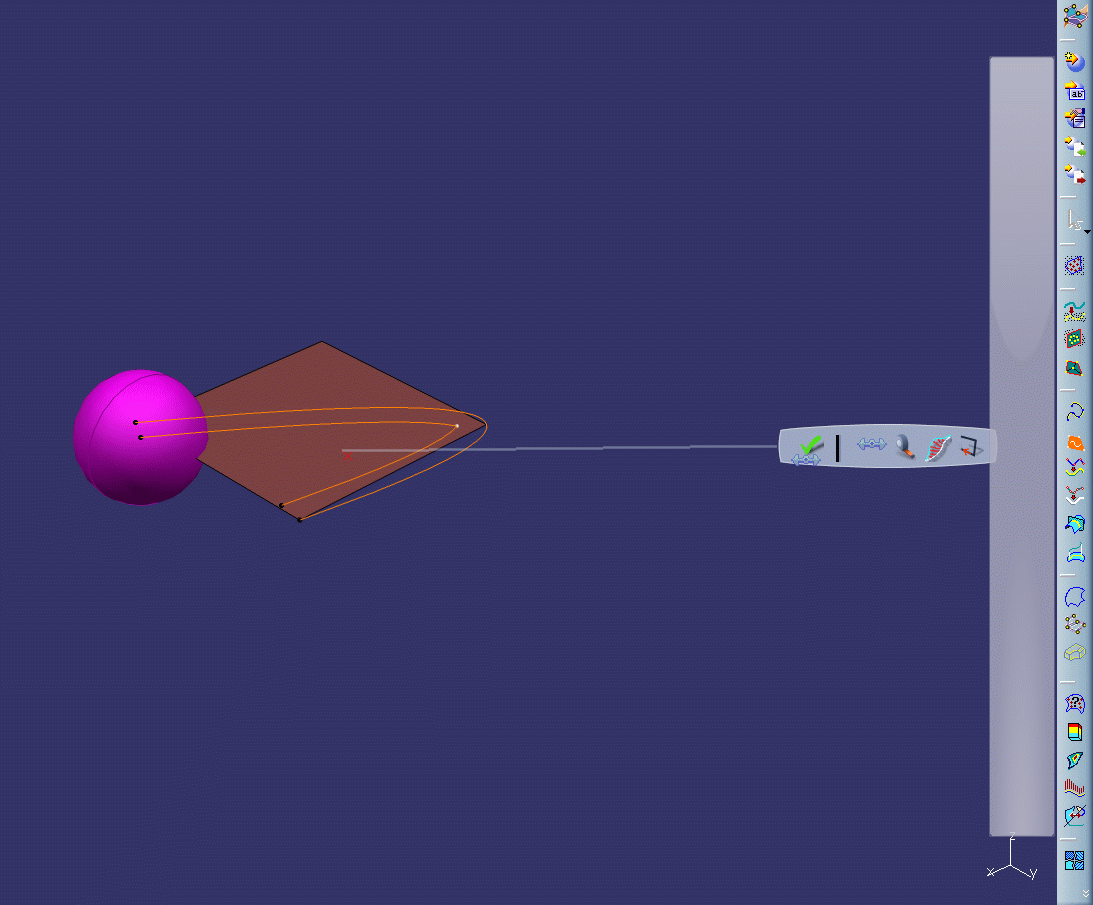
...it is vertically displayed.