Accessing Library Components | |||||
|
| ||||
Alias / Reference
You can select the parameter Alias/Reference to change the call of a library element.
Add a new library
 (see Inserting Libraries) in the Simulation Logic tree.
In the Library Definition dialog box, set the Insertion Mode to Private Alias.
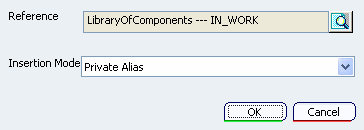
Click OK.
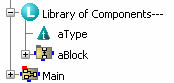
Add again the same library
.In the Library Definition dialog box, set the Insertion Mode to Private Reference.
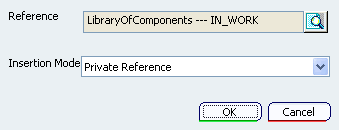
Click OK.
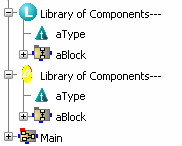
A library set as a private reference is identified by a yellow icon.
To verify the accessibility of the library elements:
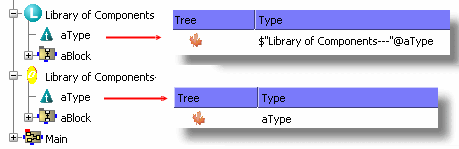
- Click
New Type
 in
the Module Management
toolbar and select the Main block.
in
the Module Management
toolbar and select the Main block.
- Click
New Type

Public / Private
You can use the parameter Public/Private to change the scope of the library outside the current module.
Select New Module
 in the Module Management toolbar and select the Main block.
The module is inserted before the block, that means that the module elements can be visible from the block elements.

Select the module and add a library
.The dialog box Position is displayed.
In the Library Definition dialog box, set the Insertion Mode to Private Alias.
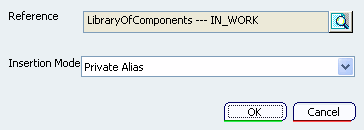
Click OK.
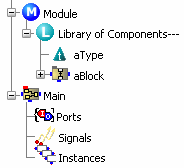
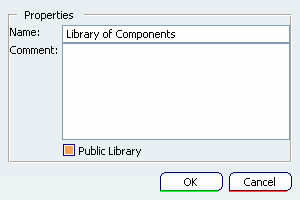
To change the type (Public/Private) double-click the library in the specification tree.
The Module Properties dialog box appears.
Repeat steps 9-10.
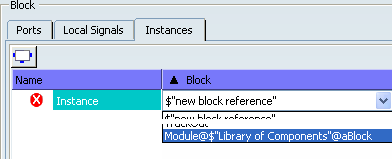
aBlock is now visible in the list of the block.